
Time
The Time panel works on the selected movement. Select the movement’s root or any of its parts. With nothing selected, it says Select a movement and its buttons are greyed out.
Every movement runs from one clock: the scene’s frame and frame rate. At 24 fps, frame 25 is one second after frame 1. Each part reads that time, so the hands, the train and the escapement always agree.
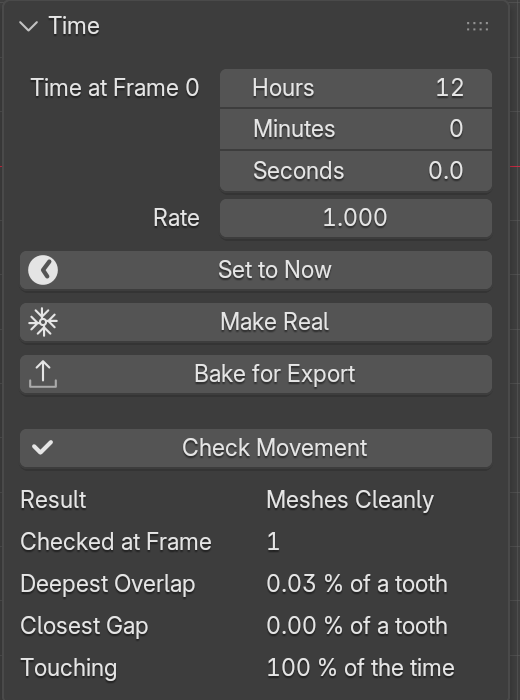
Time at Frame 0
Section titled “Time at Frame 0”The time the movement shows at frame 0, in Hours, Minutes and Seconds. Type the time your shot needs, such as 10:09 for the classic watch-ad pose. The movement runs on from there as the frames play.
How fast the movement runs. At 1 it runs in real time. Set 0.1 for a close-up where each tick takes ten times as long, or 60 to see a minute pass every second. Rate changes the whole movement, so a slow escapement still matches its hands.
Set to Now
Section titled “Set to Now”Click it and the movement shows the time on your computer at the current frame. TockPilot changes Time at Frame 0 for you.
Make Real
Section titled “Make Real”Freezes the movement as it stands at the current frame. Each part becomes a plain object with no drivers: it no longer ticks and needs no add-on. Use it for a still, or to pose and edit parts by hand. Undo with Ctrl+Z. While a movement is frozen, Set to Now and Check Movement are greyed out.
Bake for Export
Section titled “Bake for Export”Turns the movement’s drivers into one key a frame over the scene’s frame range. Other programs read keys, not Blender’s drivers, so bake before you export to glTF or FBX. Set the frame range first. The hairspring keeps the shape it has at the current frame. Undo the bake to change the time or the frame range.
Check Movement
Section titled “Check Movement”Plays the movement through one full swing of its pendulum or balance from the current frame, two ticks, and measures how the escape wheel’s teeth meet the pallets. The panel then shows:
- Result: Meshes Cleanly when no tooth sinks deeper than 1 % of a tooth into a pallet, else Teeth Overlap.
- Deepest Overlap and Closest Gap, as a share of a tooth.
- Touching: how much of the time a tooth rests on a pallet.
TockPilot’s own tests hold every style to the same 1 % mark, checked at 400 poses a beat. If you move or scale a part by hand, run the check again.