
Getting started
TockPilot adds a working clock or watch movement to your scene. Every wheel turns at its real ratio, the escapement locks and releases tooth by tooth, and the hands show the time you set. You need Blender 4.5 or newer on Windows, macOS (Apple silicon) or Linux.
Install
Section titled “Install”- Download the TockPilot zip. Leave it zipped.
- In Blender, open Edit > Preferences > Get Extensions.
- Click the arrow at the top right and pick Install from Disk. Pick the zip.
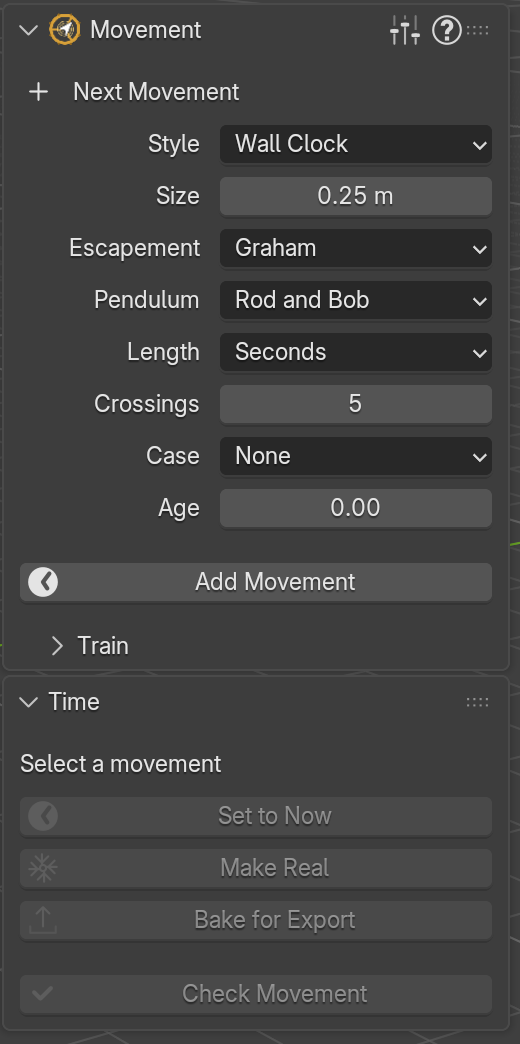
- Close the preferences. In the 3D Viewport, press N to open the sidebar and click the TockPilot tab.
Your first clock
Section titled “Your first clock”- Delete the default Cube (select it, press X). TockPilot builds at the 3D cursor, so the Cube would hide the movement.
- Leave Style at Wall Clock and click Add Movement.
- Press Space to play. The pendulum swings, the escape wheel steps once a second and the seconds hand follows it.
- In the Time panel, click Set to Now. The hands jump to the time on your computer.
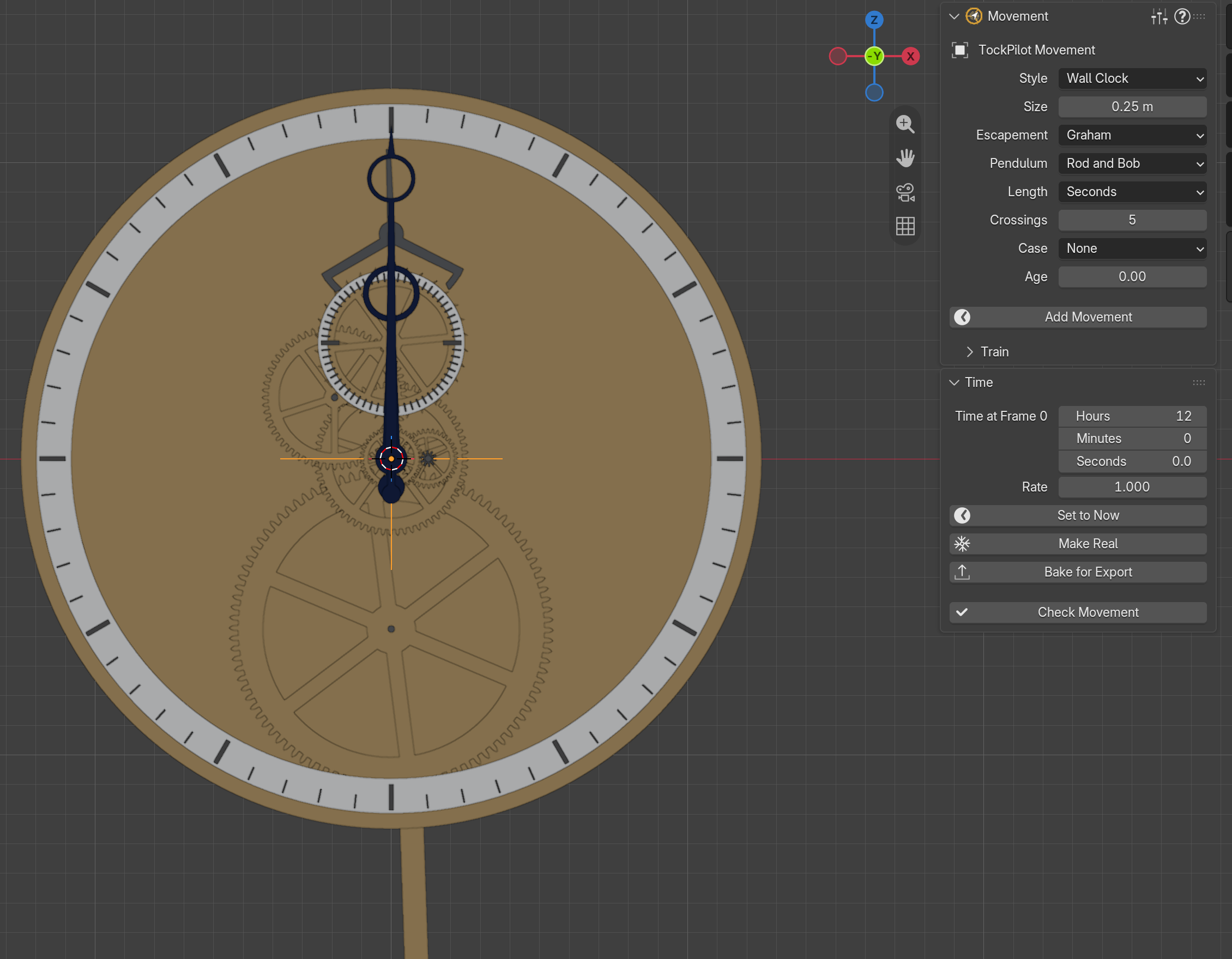
That is all a clock needs. Render it as it is, or turn it into a watch with Style.
What you get
Section titled “What you get”TockPilot puts each movement in a collection of its own, with every part parented to one root object, such as TockPilot Movement for a clock. Move, turn or scale the root and the whole movement follows.
The parts move on drivers that Blender runs by itself. You can send the file to someone without TockPilot and it still ticks, also with Auto Run Python Scripts off.
With the movement selected, the Movement panel shows its own settings. Change one and TockPilot rebuilds that movement in place, keeping its name, place and parent. With nothing selected, the panel shows the settings for the next Add Movement.
Where next
Section titled “Where next”- Movement: every style and setting.
- Time: the time it shows, slow motion, freezing it for a render, exporting it.
- Presets: eleven ready movements, and your own.
- Help: messages, questions and how to report a problem.
Press F1 over any TockPilot setting or button in Blender to open its section here.